




Cultivating Your Digital Oasis: A Comprehensive Guide to Downloading and Mastering "Grow a Garden" on Roblox
The "cozy gaming" revolution has found a powerful home within the Roblox ecosystem, and few titles exemplify this trend better than Grow a Garden. Unlike the high-octane combat simulators or complex obbies that dominate the platform’s front page, Grow a Garden offers a meditative, rewarding experience centered on patience, aesthetics, and economic management. For many players, the transition from high-stress environments to the tranquil rows of a digital nursery is a welcome reprieve. However, because "Grow a Garden" exists as an experience within the larger Roblox framework, the process of "downloading" the game is multifaceted, involving the installation of the core engine and the navigation of the platform’s unique interface.
This expert-level guide is designed to navigate you through the entire lifecycle of getting started with Grow a Garden. Whether you are a parent setting this up for a child or a veteran gamer seeking a peaceful secondary game, we will cover the technical prerequisites, the installation nuances across various hardware, and the strategic foundations needed to ensure your first harvest is a success. By the time you reach the conclusion, you will not only have the game installed but will possess the specialized knowledge required to optimize your garden for maximum efficiency and visual splendor.
The Evolution of Gardening Simulators on the Roblox Platform
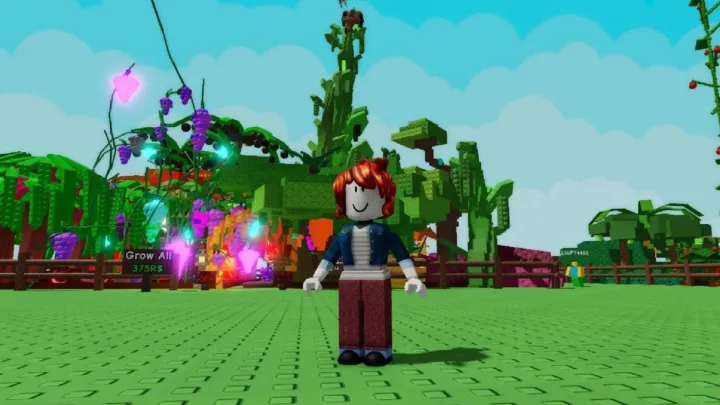
Gardening simulators have existed on Roblox for over a decade, but the modern iteration of Grow a Garden represents a significant leap in both graphical fidelity and mechanical depth. In the early days, these games were simple "clickers" where players interacted with static blocks to gain currency. Today, Grow a Garden utilizes the latest Luau scripting improvements to offer dynamic plant growth, real-time weather effects, and complex inventory systems. This evolution reflects a shift in player demographics; users are increasingly looking for persistent worlds where their progress feels tangible and their creative choices matter.
The appeal of Grow a Garden lies in its low barrier to entry paired with a surprisingly high skill ceiling regarding landscape design and resource allocation. It utilizes a "Freemium" model that is remarkably fair compared to its competitors, allowing players to reach end-game content through dedicated play rather than mandatory microtransactions. As the Roblox engine continues to integrate more sophisticated lighting and particle effects, games like Grow a Garden become showcase pieces for what a dedicated indie developer can achieve within a shared metaverse.
Understanding this context is vital for new players. You aren't just downloading a simple app; you are entering an evolving ecosystem. The game frequently receives updates that introduce new flora, seasonal events, and social mechanics. This persistence is what keeps the community thriving and why the "download" process is just the beginning of a long-term hobby.
Establishing Your Digital Identity through a Roblox Account
Before you can set foot in your garden, you must establish a presence on the Roblox platform. Since Grow a Garden is an "experience" hosted on the Roblox cloud, your progress is tied directly to your global Roblox account rather than a local save file on your hard drive. This is an advantage for players who switch between devices, but it necessitates a secure and well-configured profile.
Creating a Secure Profile
- Visit the official Roblox website or open the mobile app.
- Enter your birthday (this is crucial for safety filters and age-appropriate content).
- Choose a unique username. Avoid using your real name to maintain privacy.
- Create a strong password. Expert tip: use a passphrase or a combination of alphanumeric characters and symbols.
- Provide a verified email or phone number. This is the only way to recover your account if you forget your credentials.
Once your account is created, take a moment to explore the "Settings" menu. Under the "Privacy" tab, you can control who can message you or join you in experiences. For a peaceful game like Grow a Garden, many players prefer to set their communication to "Friends Only" to avoid distractions while they are focused on their botanical arrangements.
Procuring and Installing the Roblox Client on Desktop Systems
To play Grow a Garden on a PC or Mac, you must install the Roblox Player. This is a lightweight client that handles the rendering of the 3D environments and the communication with the game servers. The process is slightly different from standard software installations because it is triggered via the web browser.
The Desktop Installation Workflow
- The Launch Trigger: Navigate to the "Grow a Garden" game page on the Roblox website. Click the large green "Play" button.
- The Installer Download: A pop-up will appear informing you that Roblox is loading. If the client is not installed, you will be prompted to "Download and Install Roblox."
- Execution: Locate the RobloxPlayerLauncher.exe (Windows) or Roblox.dmg (Mac) in your downloads folder. Run the file.
- Initialization: The installer will automatically download the necessary assets and configure your system. Once finished, the website will recognize the installation and launch the game directly.
Hardware Considerations for Gardeners
While Roblox can run on aging hardware, Grow a Garden specifically benefits from a dedicated GPU. If you are using a laptop with integrated graphics, ensure your power settings are set to "High Performance." The game features numerous transparent textures (leaves and petals) and particle effects (water droplets and butterflies) which can tax your system if you are aiming for the maximum graphical setting.
Seamless Installation for Mobile Gardening on Android and iOS
One of the greatest strengths of Grow a Garden is its portability. The game is fully optimized for touch controls, making it an ideal companion for commutes or relaxing on the couch. The installation on mobile is handled through the respective app stores, ensuring that you receive the latest security patches and performance updates automatically.
Mobile App Store Steps
On an Android device, open the Google Play Store; for Apple users, open the App Store. Search for "Roblox" and tap install. It is important to note that you do not search for "Grow a Garden" in the app store itself, as it is not a standalone application. After the main Roblox app is installed, open it and log in with the credentials you created previously.
Optimizing for Mobile Performance
Mobile devices vary wildly in terms of processing power. To ensure a smooth gardening experience, close background applications before launching Roblox. Within the game, if you experience "stuttering," you can access the Roblox menu (the icon in the top left) and set "Graphics Mode" to "Manual," then slide the quality down. This allows the game to maintain a high frame rate, which is essential for precise seed placement and watering.
Navigating the Roblox Metaverse to Locate Grow a Garden
With the platform installed, the next hurdle is finding the specific version of Grow a Garden that suits your playstyle. Because Roblox is a platform of user-generated content, there are often several games with similar names. Finding the "official" or most popular version ensures you have access to the most features and a stable player base.
Using the Search and Discovery Tools
Inside the Roblox client, use the search bar at the top and type "Grow a Garden." Look for games with a high "Upvote" percentage (usually above 85%) and a large number of "Active" players. Expert gardeners often look for games developed by recognized groups or developers with a history of consistent updates.
Favoriting for Quick Access
- The Star Icon: Once you find the correct game, click the "Favorite" (star) icon on the game page.
- The Following Feature: Click "Follow" to receive notifications about new updates, such as the introduction of rare orchids or seasonal gardening tools.
- Home Screen Shortcut: Games you have recently played or favorited will appear on your Roblox "Home" tab, allowing you to bypass the search process in the future.
Optimizing Technical Settings for a Flourishing Garden
Once you have successfully launched Grow a Garden, the temptation is to start planting immediately. However, an expert player knows that fine-tuning your settings can significantly impact your productivity. The interface for Grow a Garden often includes custom settings that exist independently of the standard Roblox menu.
In-Game UI Adjustments
Most gardening sims on Roblox provide a "Settings" gear icon on the screen. Here, you can toggle "Fast Planting" or "Auto-Watering" if you have unlocked those perks. You should also adjust the "Camera Sensitivity." Since you will spend a lot of time moving between flower beds, a camera that moves too fast can lead to misclicks, while one that is too slow makes navigating large plots tedious.
Audio and Ambience
The soundscape of Grow a Garden is designed to be relaxing. However, if you are listening to your own music or a podcast, you may want to mute the in-game BGM while keeping the "SFX" on. The SFX are actually functional; they provide auditory cues for when a plant has been fully watered or when a harvest is ready, allowing you to multitask more effectively within the game world.
The First Harvest: Understanding Initial Gameplay Mechanics
Now that you are in the game, the core loop begins. Grow a Garden typically follows a "Plant-Tend-Harvest-Sell" cycle. Mastering this loop early is the key to transitioning from a small dirt patch to a massive greenhouse empire.
The Planting Cycle
- Purchase Seeds: Start with the cheapest, fastest-growing seeds (often sunflowers or basic daisies).
- Soil Preparation: Click on an empty plot to prepare the soil.
- Seeding: Equip the seeds from your inventory and click the plot.
- Hydration: Use your watering can. Keep an eye on the moisture meter; plants in Grow a Garden often grow faster when perfectly hydrated.
Maximizing Yields
- Timing: Different plants have different growth cycles. If you have a short play session, stick to fast-growing flowers. If you are about to log off, plant long-term crops like trees or rare shrubs.
- Fertilizer Usage: Early in the game, fertilizer might seem expensive, but the ROI (Return on Investment) is usually positive, as it significantly cuts down growth time.
- Inventory Management: Regularly sell your harvests at the in-game shop to clear space. An expert tip: save at least 10% of your earnings to reinvest in higher-tier seeds immediately.
Strategic Expansion and Resource Management in Grow a Garden
As you earn currency, the "Expansion" phase of the game begins. This is where Grow a Garden separates casual clickers from strategic planners. You will need to decide between expanding your physical land or upgrading your tools.
Tool Upgrades vs. Land Expansion
- The Watering Can: Upgrading your watering can increases the "Area of Effect" (AoE), allowing you to water four or nine plots at once. This is the single best investment for mid-game players.
- The Scythe/Harvester: Faster harvesting tools reduce the cooldown between clicks, which is vital when you have over 50 plots to manage.
- Land Plots: Only expand your land when you find yourself waiting for plants to grow. If you have empty plots and no seeds, you have expanded too quickly.
Advanced Botanical Strategy
Later in the game, you may unlock "Greenhouses" or "Hydroponics." These specialized areas protect your plants from "Weather Events" (like frost or droughts) that can occur in some versions of the game. Diversifying your crops is also essential; some plants might sell for less but grant more "Experience Points," which are required to unlock high-level gardening decorations and prestige items.
Leveraging Community Groups and Multiplayer Benefits
Roblox is a social platform, and Grow a Garden often rewards players for interacting with others. Many versions of the game offer bonuses for joining the developer’s "Roblox Group" or playing on a server with friends.
Group Perks and Daily Rewards
Joining the developer's group usually grants a "Permanent 10% Cash Boost" or access to a "Daily Reward Chest." These small bonuses compound over time, potentially saving you dozens of hours of grinding. Always check the game's description for a link to their community group.
The Benefits of Multiplayer Gardening
- Trading: Some versions allow you to trade rare seeds or decorative items with other players.
- Visiting: You can visit other players' gardens to gain inspiration for your own layout. Some games even award "Social XP" for liking or rating other people’s plots.
- Collaborative Events: During holidays, developers often release community-wide goals. Working together to plant 1,000,000 roses, for example, might unlock a limited-edition "Golden Watering Can" for everyone involved.
Maintaining Security and Troubleshooting Installation Issues
Because your garden represents hours of effort, protecting your account is non-negotiable. Furthermore, technical glitches can occasionally hinder your ability to access your plot, requiring a systematic approach to troubleshooting.
Account Security Protocols
Enable Two-Factor Authentication (2FA) in your Roblox security settings. This ensures that even if someone discovers your password, they cannot access your account without a code from your email or an authenticator app. Never click on links promising "Free Robux" or "Instant Garden Upgrades" from third-party sites; these are almost always phishing attempts designed to steal your hard-earned progress.
Common Troubleshooting Steps
- Infinite Loading Screen: This is usually a localized cache issue. Clear your browser cookies or the Roblox app cache and restart.
- Lag and Delayed Inputs: Check your ping in the Roblox "Performance Stats" (Ctrl+Shift+F7). If it is high, try joining a different server or checking your home Wi-Fi.
- Assets Not Loading: If your plants appear as grey boxes, your internet speed may be struggling to download the textures. Stay in the game for a few minutes to allow the assets to populate, or lower your graphics settings to reduce the data load.
Pros, Cons, and Expert Rating
Grow a Garden is a standout title, but like any game, it has strengths and weaknesses that players should consider before committing their time.
Pros
- High Stress-Relief Factor: Excellent for unwinding after a long day.
- Visual Progression: Seeing a barren lot turn into a vibrant forest is highly satisfying.
- Fair Economy: Progress is achievable without spending real money (Robux).
- Creative Expression: Significant freedom in how you arrange and decorate your garden.
Cons
- Repetitive Early Game: The initial grind for the first tool upgrade can be slow.
- Server Dependency: Being an online game, you cannot garden offline.
- Inventory Caps: Can sometimes feel restrictive for hoarders who want to keep every rare plant.
Expert Rating: 4.7 / 5.0
Grow a Garden is a masterclass in "Cozy" Roblox design. It successfully balances a rewarding economic loop with a relaxing atmosphere. While it lacks the high-stakes thrill of action games, its depth in customization and the joy of long-term cultivation make it a must-download for any Roblox user.
Conclusion: From a Single Seed to a Botanical Empire
Downloading and starting your journey in Grow a Garden is an invitation to a world of patience and beauty. By following the steps outlined in this guide—from the initial Roblox platform installation to the strategic management of your first harvest—you have positioned yourself far ahead of the average player. Remember that the essence of this game is not just in the "selling" of the plants, but in the creative process of designing a space that reflects your personal aesthetic.
As you continue to expand your plots, upgrade your watering cans, and discover rare hybrid species, you will find that the community within Grow a Garden is one of the most supportive on the platform. Don't be afraid to share your progress, join the developer groups, and experiment with different garden layouts. Your digital oasis is a living, breathing project that grows alongside you. Happy gardening!